Showing posts with label Social Networking App. Show all posts

How to Solve Facebook Disconnection Problem on Trillian Astra

It's very annoying when you try to connect to Facebook chat from your multi-instant messenger and each and every time you receive messages like "Trillian needs permission to connect to Facebook" or "We cannot proceed with your request". Sometime Trillian misconfigured after Facebook updates on their website or might be you don't have the most recent version.

Now I'm going to tell you the steps you can follow to get rid of this annoying problem instantly. Please follow the instructions below carefully:

STEP ONE: REMOVE CONNECTION FROM TRILLIAN:
Firstly, you should remove the Facebook connection of your account from Trillian by going:

1) Trillian > Manage Accounts
2) Select 'Accounts' from the sidebar of the window on left right inside the ‘Basic' category
3) Now you need to click cross button of your Facebook account connection clip_image002 
4) Immediately a dialog box will appear to confirm this action, just click 'Yes'

clip_image003

5) Now you've removed your Facebook account connection from Trillian Astra

STEP TWO: REMOVE TRILLIAN APP FROM FACEBOOK ACCOUNT:
Now you're going to remove Trillian app from your Facebook account

1) First sign in your Facebook and click 'Settings' icon clip_image004
2) On Settings page, select 'Apps' link from the sidebar on the left.
3) Now you've to find Trillian app in 'App to use' section to see all your currently using Facebook apps
    you've to click 'Show all apps' now find your apps and it should look like the below screenshot.

clip_image005

4) Click the cross icon that you can see on the right then a dialog will appear to ask to remove this app.

clip_image006

5) You can click 'Remove' but be careful not to check the 'Delete All your Trillian activity on Facebook' because it
     will delete all your feeds/chats/etc. that you've made using Trillian messenger. 
6) Now you've successfully removed the Trillian app from your Facebook account.


FINAL STEP: ADD FACEBOOK ACCOUNT CONNECTION IN TRILLIAN
Finally, recreate the Facebook connection for your account on Trillian messenger by going to:

1) Trillian > Manage Accounts
2)
Select 'Accounts' from the sidebar of the window on left right inside the ‘Basic' category
3) Click 'Add new Account' scroll through 'Contacts' > Facebook
4)
Now enter your Facebook email ID > and click 'Connect' button.
5) Simultaneously a Facebook login window will appear to ask put your email and password for your account  
     after entering your login details click 'Login'
6)
In the same window Facebook will ask you to grant permissions for your profile and posting all you need is to
     click 'Okay' and you'll need to this few times.

 
Now I'm sure you'll able to see that Facebook feeds will come to show again on your Trillian messenger and also you'll able to see your Facebook chat contacts. So, this is how you can solve this annoying Facebook chat disconnection problem on you Trillian, and enjoy using Facebook from your desktop keeps you connected with your friends & family.

Read More

How You Can Able to Manage All Social Networking & IM Accounts At One Place???

As we're growing in the fast-moving world, quick communication between people is the main concern to keep yourself connected with friends and business contacts in really cheap. On the Internet Instant Messaging Services allow us to send/receive messages in real-time. Since almost all of these services are free that's why there so much demand, however there are lots of choices available to you like Google Talk, MSN, Yahoo, AOL, and especially Skype (which is widely high quality for voice communication between people).

Do-You-Know_thumb4

It’s fact that most internet users use more than one IM Service and Social Networking site.


1) Most Internet Users Use More than One Social Networking Site and IM Service

Its fact that most internet users use more than one IM service. To use their services you to use their website or install their IM clients for each of the IM services. Social networking sites like Facebook, Twitter, where people have to sign in to their website to keep connect and message their friends. So, it would be a headache for you to keep in contact with them if your one friend uses Facebook for IM, and other use Google talk / Yahoo, etc. Thus, Having an account on all major Social and IM website is a good solution, but managing all of them individually is another headache is much time consuming, and it can make you less productive.

Final Image

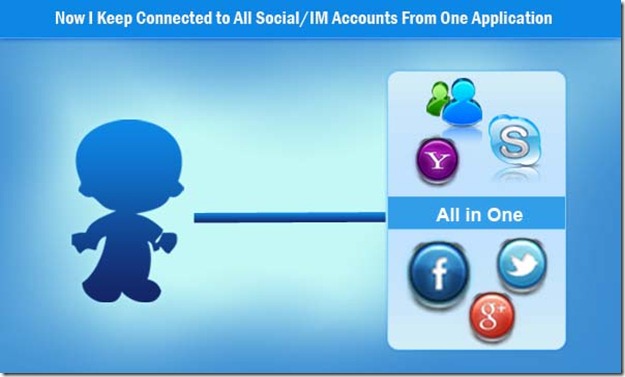
2) Manage Multiple Social Networking / Instant Messengers Accounts From One App

To fill this gap of organizing all major ways of online communication multiple Social/IM services at once we have available multiple Social/IM application for your desktop. In which can manage all your accounts at one place. So, you'll keep connected with everyone whether your friend is on Yahoo / Google / MSN / AOL or Facebook / Myspace no problem. You can even use twitter for tweets and keep updated with your timeline, like or comment on Facebook's updates.

Final Image2

3) Multiple Social Networking / Instant Messenger App Ready to Keep You Connected

There are three major applications available that offer us to use and organize multiple Social/IM accounts at once. The applications are:
* Digsby
* Trellian Astra
* Pidgin

I have used Digsby for about 3 three years and much satisfied with this application, but nowadays it's annoying with "Facebook authentication error' message. At the moment, I am switching to Trellian Astra still I'm much satisfied with it due to it looks and support for Skype's account. I can be easily able to send tweets from my two twitter accounts, one for friends and other for business. So, now it's time for you to start thinking to use multiple Social/IM application to save your time in the future that you consume just for communication.
Read More

Followers